 Help Center
Release includes 2026 v26.2.0
This release news includes Naviate Architecture 2026 v26.2.0 and are available on My Symetri -> Applications
Line Cleanup
Clean up overlapping lines of the same style with a single click, with an adjustable tolerance.
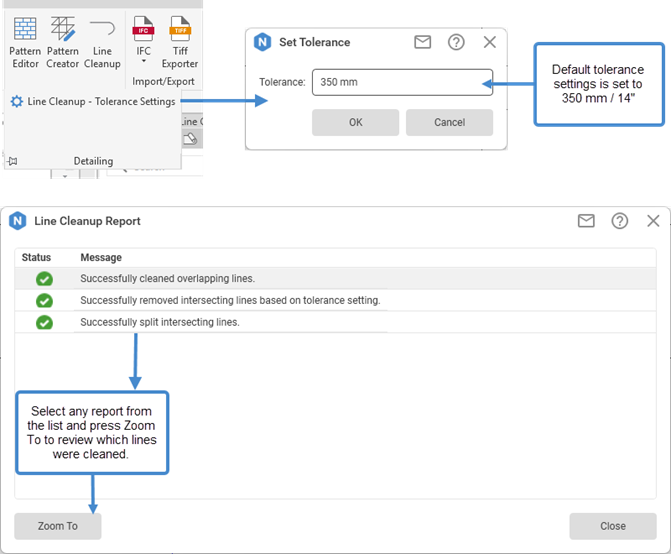
Clean up overlapping lines of the same style with a single click. Before running the tool, you can set a tolerance value. After the cleanup, a report dialog lists all changes made, with the option to zoom in on specific modifications for review.
The tool works with Detail Lines, Model Lines, Room Separation Lines, and Area Boundary Lines. You can use the tool with a preselection of lines, or run it without any selection to clean up all applicable lines automatically.
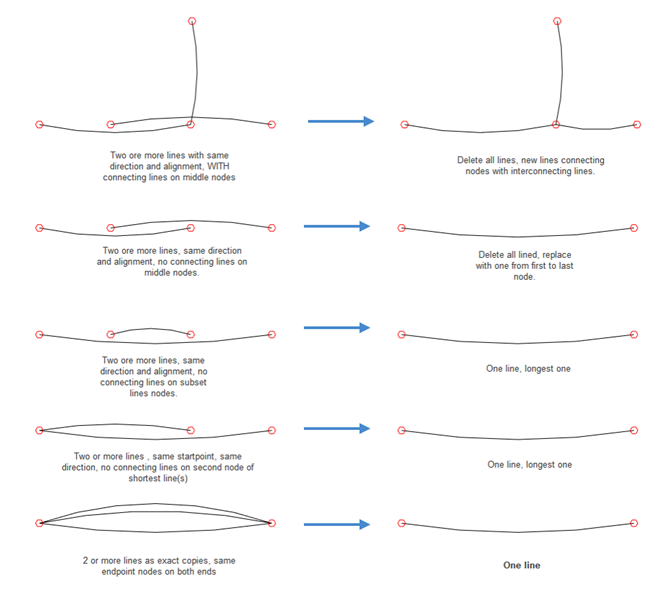
Lines will be cleaned as shown:
Tip! For additional information about Line Cleanup, see: Line Cleanup
Curtain Wall Elevations
Transfer Curtain Wall Elevations settings from one project to another using the Transfer Settings Accelerate tool.
Curtain Wall Elevation are now included in the Transfer Settings feature in Accelerate. This allows Curtain Wall Elevation settings to be transfered from one project to another efficiently using the Transfer Settings tool in Accelerate. This streamlined process helps ensure consistency across projects while saving valuable time.
Tip! For additional information about Curtain Wall Elevations, see: Curtain Wall Elevations
Door/Window Drawings
There are several Improvements for Door/Window Drawings tool:
1 Enhanced tag alignment on sheets to ensure consistency. Tags are now uniformly aligned, regardless of door or window dimensions that previously affected placement.
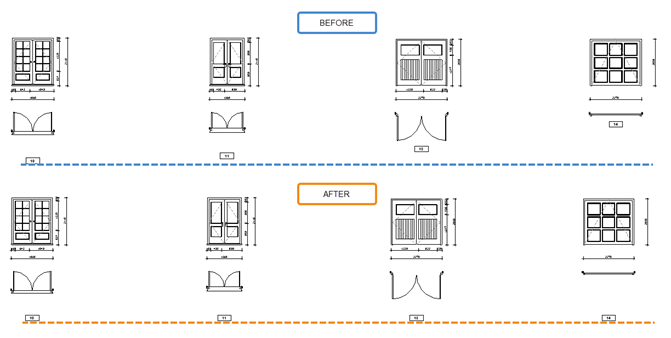
2 Optimized Dimension placement to avoid overlapping and ensure consistent spacing.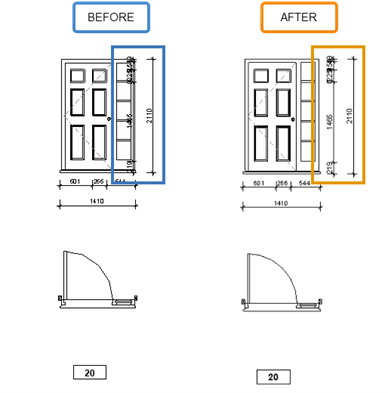
3 From now on, only non-flipped/non-mirrored Doors/Winodws (original swing) will be used when creating drawings.
3a If your project contains at least one Door/Window with its original swing (not flipped or mirrored), that Door/Window type will be recognized and used as the reference for generating drawings.
3b If all Doors/Winodws are flipped or mirrored, one of them will be selected as the reference for that drawing type.
3c Later, if you add new Doors/Winodws with the original swing, existing drawings will remain unchanged after an Update. However, if you Recreate the drawings, the latest non-flipped/non-mirrored Door/Winodw will be used instead.
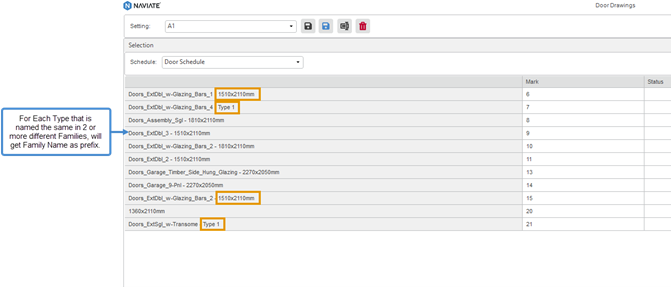
4 Added the Family Name as a prefix to the Type Name in Schedules to prevent data loss caused by duplicate Type Names across different Families. In previous versions, only one Type was displayed, and the others were omitted.
5 Enhanced View scaling allows the use of any scale without issues.
Instead of converting between imperial and metric units, we propose that the scale should follow the template settings defined by the project units. Since the template controls all views that use it, any change made will apply across the project.
For example, if you switch from metric to imperial, a scale of 1:50 will automatically be treated as a custom scale - and the same will happen when converting in the opposite direction.
6 Updated the UI and progress bar labels to more accurately reflect ongoing actions. The progress bar now displays the correct Sheet count during sheet creation.
Tip! For additional information about Doors/Winodw Drawings, see: Door Drawings, Window Drawings
Room Drawings
There are several Improvements for Room Drawings tool:
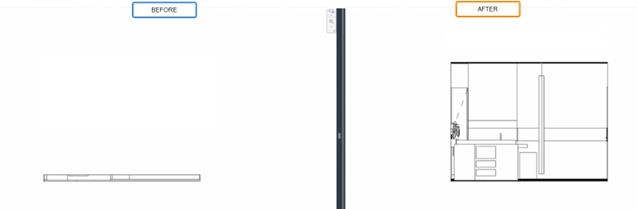
1 Create Elevations without issues for Rooms that have Floor Coverings.
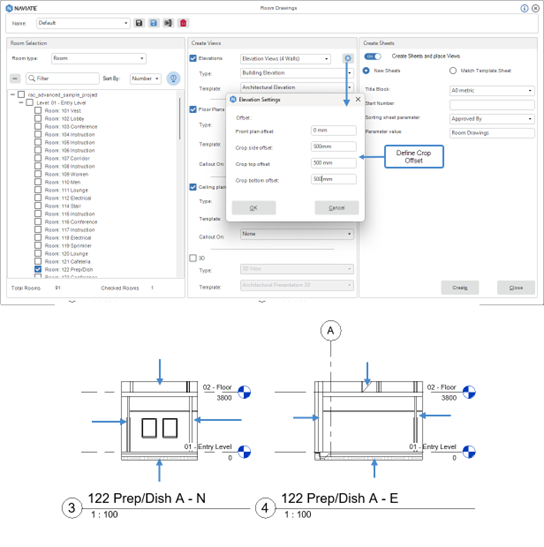
2 Elevation views can now be created using offsets predefined in the settings dialog.
3 Separation lines are now recognized when creating Room Drawings.
In previous versions, Separation lines were ignored, and Rooms were generated only according to Walls. Now, areas divided by Separation lines will be identified correctly, and separate Room Drawings will be created for each area.
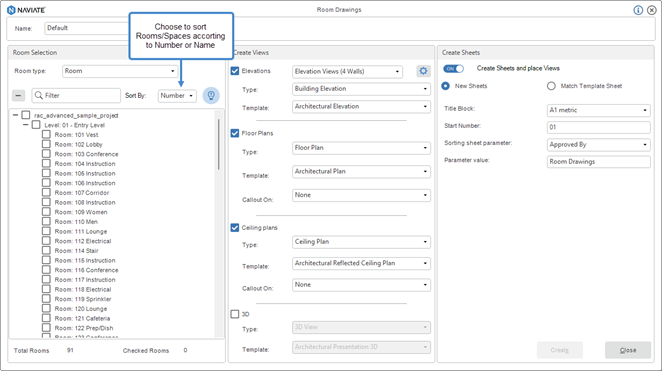
4 Rooms can now be sorted by Name or Number.
5 Settings have been improved to align with all other Naviate features.
From now on you can Save Current, Save As, Rename and Delete settings for Room Drawings
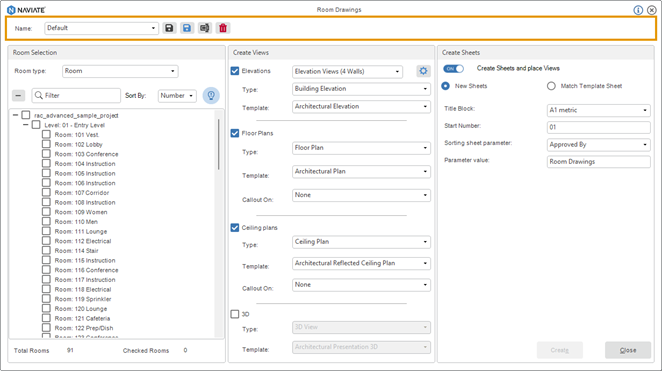
Tip! For additional information about Room Drawings, see: Room Drawings
Create Area Boundary Lines
There are several Improvements for Crete Area Boundary Lines tool:
1 Updated dropdown selection to exclude already selected Wall Types.
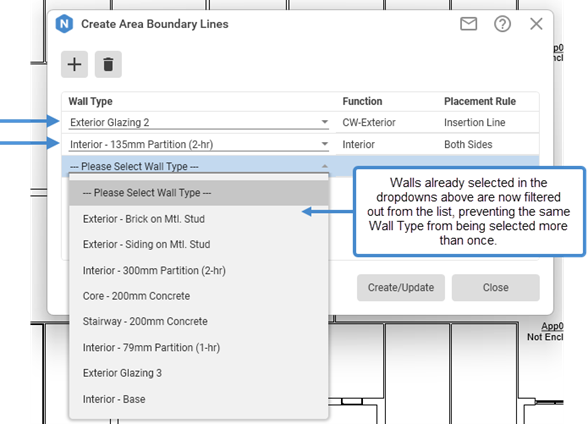
2 Enhanced placement of Area Boundary Lines on Curtain Walls to create more accurate Areas.
In earlier version, the area in front of Curtain Walls was always ignored. Now, you can choose whether to exclude or include it in the overall area calculation, depending on the wall type selection.
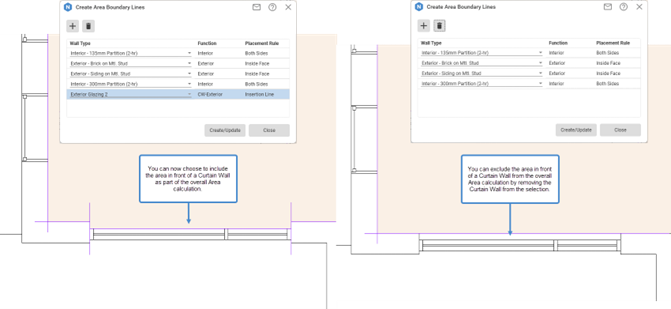
Tip! For additional information about Create Area Boundary Lines, see: Create Area Boundary Lines
Fixes
- Ref. Views from 3D Zones
- Plan View naming has been improved for easier recognition.
- Door/Window Swing and Count
- Fixed NVSwingCount miscounts for flipped Doors/Windows.
- Now you are able to transfer Door and Window Swing and Count settings at once using Transfer Settings tool.
- Fixed issue with unchanged status for loaded Revit families after deletion.
- Room Drawings
- Fixed issue with unchecked preselected Rooms/Spaces in tree view.
- Door/Window Drawings
- Fixed misalignment between Plan Views and Elevation Views.
- Using the “Delete associated sheet views and schedules” option will now delete Drafting Views.